


Session Overview
This is the first session of my practical Linux learning journey.
Instead of learning Linux only from theory, I decided to practice directly on a real VPS and learn the basics step by step.
The Goal
The goal of this session is to understand the Linux server environment and learn the fundamental commands needed to work with it.
During this session, I will:
- connect to the server using SSH
- identify the current user and permissions
- learn how to navigate the Linux filesystem
- check the server's CPU, RAM and disk usage
- investigate disk space consumption
- understand the purpose of important directories such as
/home,/etcand/var - learn the difference between a snapshot and a backup
By the end of the session, I want to be able to look at a Linux server and understand what I am looking at, how to check its basic condition, and where to start when something needs investigation.
Connecting to the Server with SSH
Before we start working with Linux, we first need to connect to our server. For this, we use SSH (Secure Shell).
SSH allows us to securely connect to a remote Linux server and control it through the terminal.
A typical SSH connection looks like this:
ssh username@server-ip
Here, username is the Linux user we want to log in as, while server-ip is the IP address of the remote server.
After running the command and authenticating, we are connected to the server and can start working with the Linux system.
In simple terms: SSH gives us a secure terminal connection to a server located somewhere else.
🔗 Want to learn more about SSH?
I have also written a separate article where I explain in detail how an SSH connection works and how to connect to a remote Linux server step by step.
If you're interested, feel free to check it out!
Checking Server Resources
Before making changes to a server, it is useful to check its basic resources.
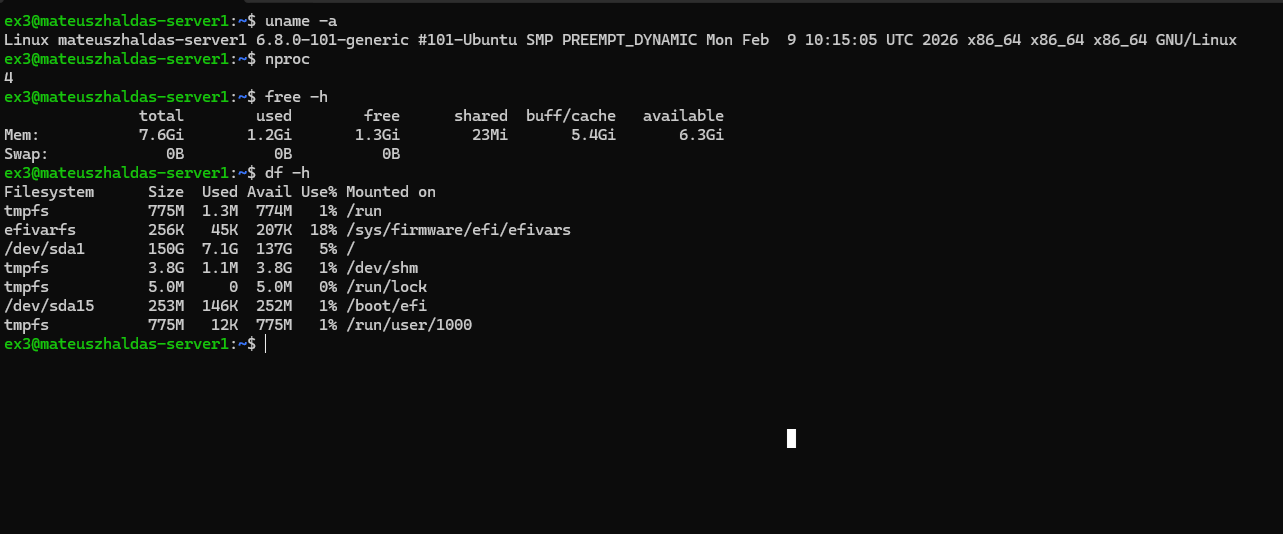
During the session, I checked the available CPU, RAM, SWAP and disk space using several Linux commands.
uname -a
nproc
free -h
df -h
uname -a — displays information about the Linux kernel and system architecture.
nproc — shows the number of available CPU processing units.
free -h — displays RAM and SWAP memory usage in a human-readable format.
df -h — shows filesystem and disk usage, including used and available space.
These commands give me a quick overview of the current state of the server and its available resources.
Understanding the Current User and Permissions
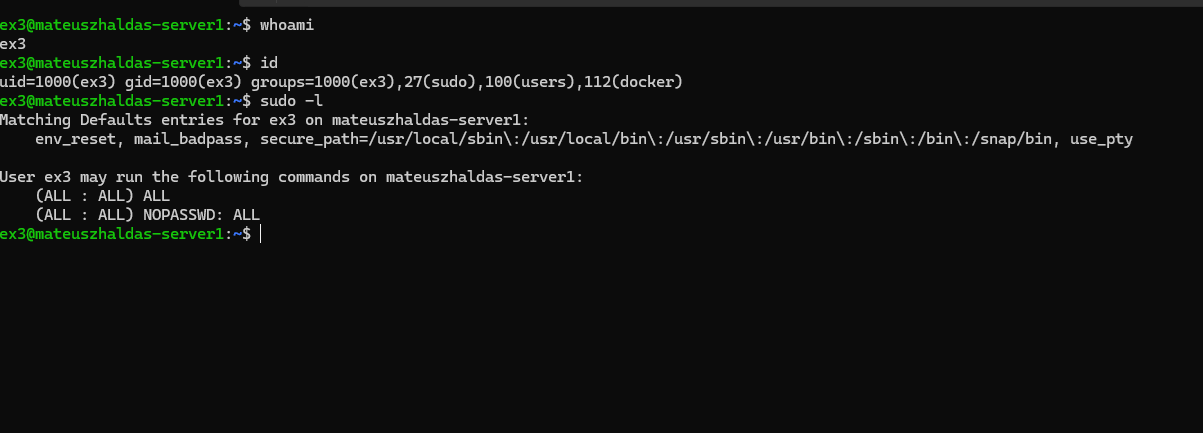
After connecting to the server, I checked which user I was logged in as and what permissions this user had.
I used:
whoami
id
sudo -l
whoami — shows the name of the current user.
id — shows the user's UID, GID and group memberships.
sudo -l — shows which commands the current user is allowed to run with sudo.
This is important because Linux uses users, groups and permissions to control access to the system.
In my case, the user had full administrative privileges through sudo, which means I could perform system administration tasks when needed.
Exploring the Linux Filesystem
After checking the user and permissions, I started exploring the Linux filesystem.
Linux uses a hierarchical filesystem, starting from the root directory /.
I learned a few important path concepts:
/— the root of the filesystem~— the home directory of the current user.— the current directory..— the parent directory
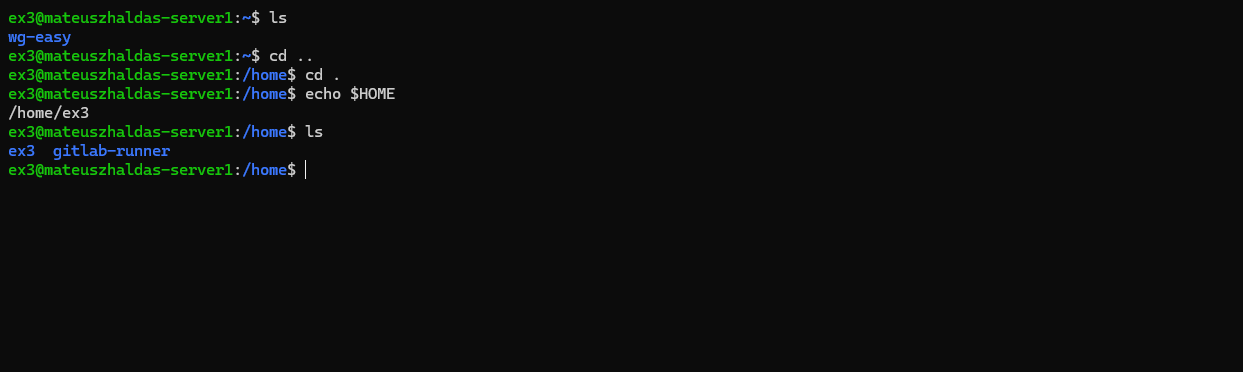
I used the following commands to navigate through the filesystem:
pwd
ls cd ..
cd .
echo $HOME
pwd — shows the current working directory.
ls — displays the contents of the current directory.
cd .. — moves to the parent directory.
cd . — stays in the current directory.
echo $HOME — shows the home directory of the current user.
For example, when working inside a project directory, cd .. allows me to move one level up in the filesystem.
Finding What Uses Disk Space
After checking the overall disk usage, I wanted to find out which directories were actually using the most space.
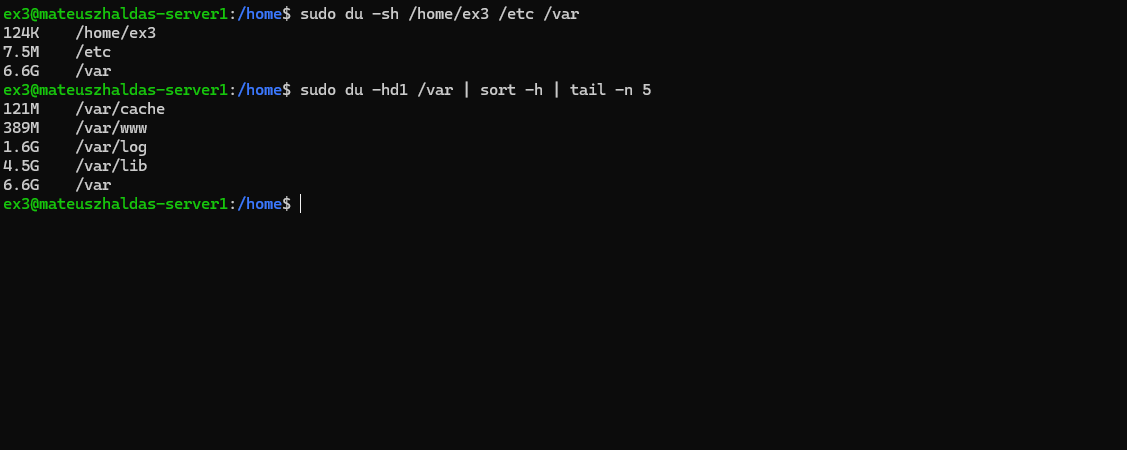
For this, I used the du command:
sudo du -hd1 /home/ex3
sudo du -hd1 /etc
sudo du -hd1 /var
du -hd1 — shows how much disk space is being used by directories at the selected level.
This helped me investigate the main system directories instead of only looking at the total disk usage.
I found that /var was using significantly more space than /etc or my home directory.
For example, inside /var:
/var/log     ~1.6G
/var/lib     ~4.5G
/var/www     ~388M
/var         ~6.6G
This also helped me understand an important difference:
df -h tells me how much disk space is used, while du helps me investigate where that space is being used.
Snapshot vs Backup
During the session, I also learned the difference between a snapshot and a backup.
A snapshot is a quick restore point for a server. It can be useful when I want to return the VPS to an earlier state after a configuration change or a failed update.
A backup is an independent copy of important data, preferably stored in another location.
The basic idea is:
HETZNER VPS
/ \
SNAPSHOT BACKUP
| |
quick restore independent copy
For a Linux server, important data can include configuration files, application files and service data.
The important lesson is that a snapshot should not be treated as a replacement for a backup. They serve different purposes and can be used together as part of a recovery strategy.
What I Learned
This first session gave me a solid starting point for working with Linux. I learned how to connect to a real server, understand its basic environment, navigate the filesystem and investigate its resources.
It may seem like a lot of simple commands, but for me, this is the foundation for everything that comes next.