


Linux — Navigation, Search & Troubleshooting: Introduction
Working with Linux is not only about knowing commands. It is also about knowing how to navigate through the filesystem, find the files you need, and investigate problems when something goes wrong.
In this session, I focused on some of the most useful commands for everyday Linux administration and troubleshooting: pwd, ls, find, du, and df.
The find command is especially useful when you need to locate specific files based on their name, size, type, or modification time. Combined with du and df, it becomes a powerful tool for investigating filesystem problems.
The goal was not simply to memorize commands, but to understand how they can be combined to investigate a real problem step by step. As a practical example, I worked through a situation where a filesystem was almost full and traced the problem down to a virtual machine disk.
This is the kind of basic troubleshooting workflow that becomes very useful when working with Linux servers in a DevOps environment.
1. Navigating the Linux Filesystem
Before searching for files or troubleshooting a Linux server, I first need to know where I am in the filesystem and what is located in the current directory.
The first command I use is pwd:
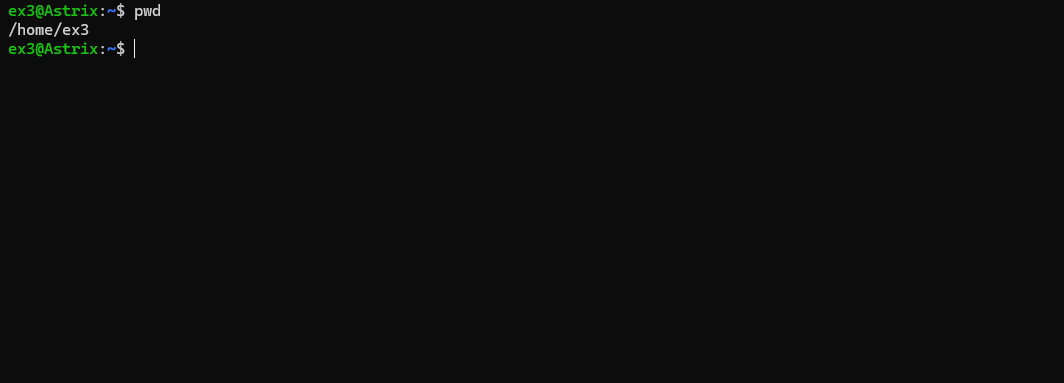
pwd stands for print working directory. It shows the path of the directory I am currently working in.
For example:
/home/ex3
This may seem like a very simple command, but it is useful because Linux commands often depend on the current location.
To see what is inside the current directory, I can use:
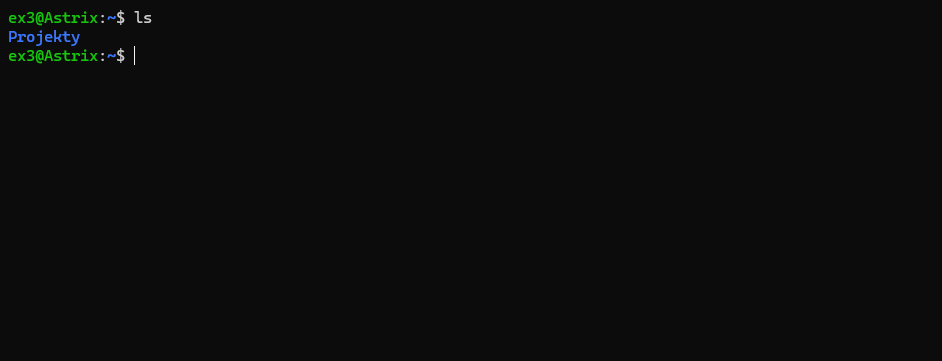
For more detailed information, I usually use:
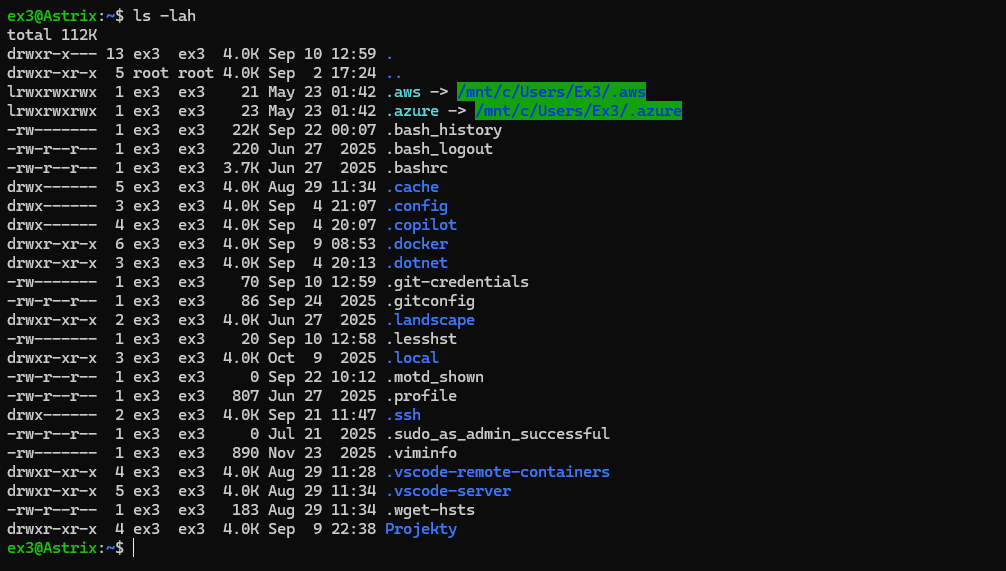
This gives me a more detailed view, including file permissions, ownership, file sizes, and hidden files.
These commands are simple, but they are the starting point for working with the Linux filesystem. Before I can find a specific file or investigate a problem, I need to understand where I am and what is around me.
2. Finding Files with find
Once I know where I am in the filesystem, the next step is being able to find specific files.
This is where the find command becomes extremely useful.
A simple example is:
sudo find /var -name '*.log'
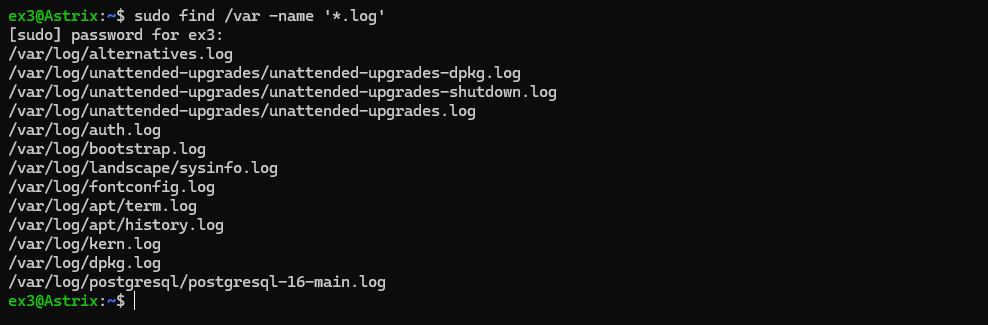
This command searches inside /var and looks for files whose names end with .log.
The nice thing about find is that I can search for files using different conditions. For example, I can specify the file type:
find /etc/nginx -type f -name '*.conf'
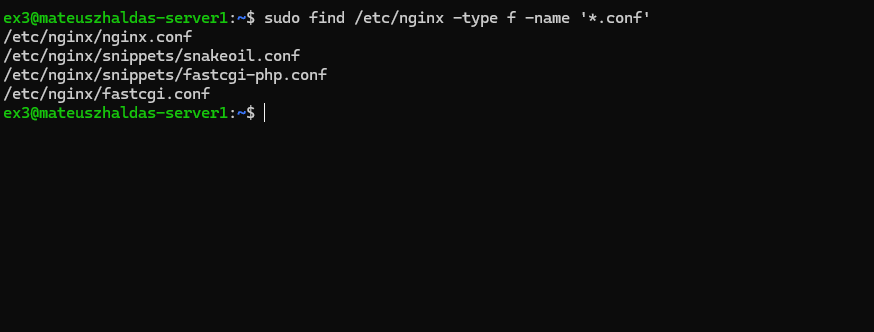
Here, -type f means that I am looking only for regular files.
I can also search for files based on their size:
find /var/log -type f -size +10M
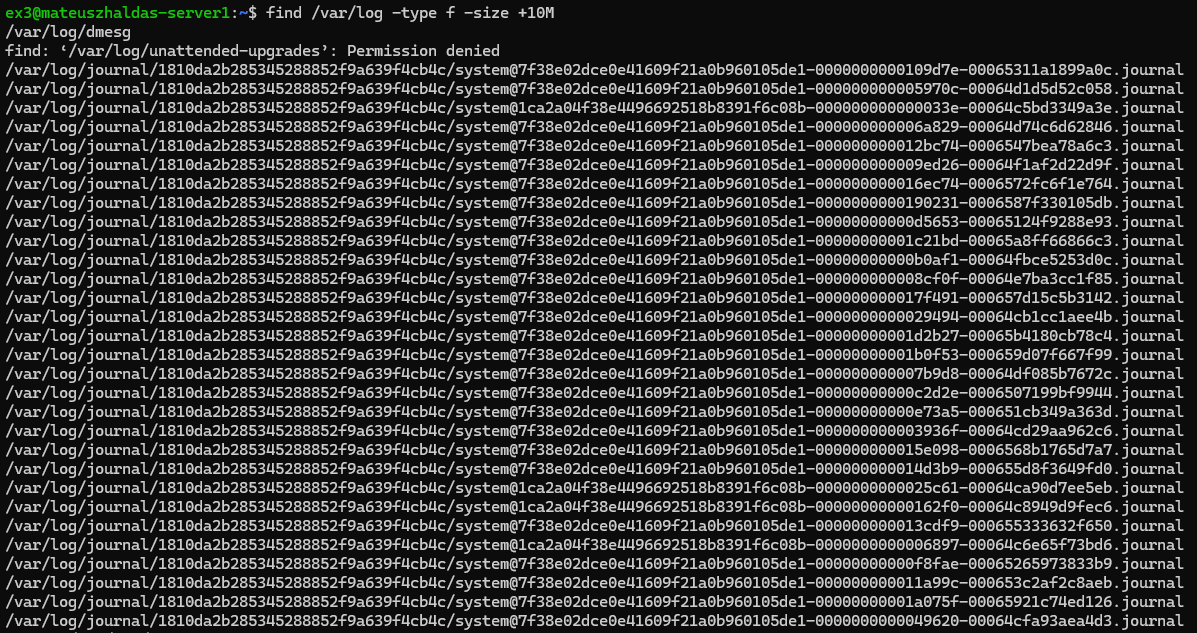
This searches for files larger than 10 MB.
I can use other units as well:
find /var/log -type f -size +2G
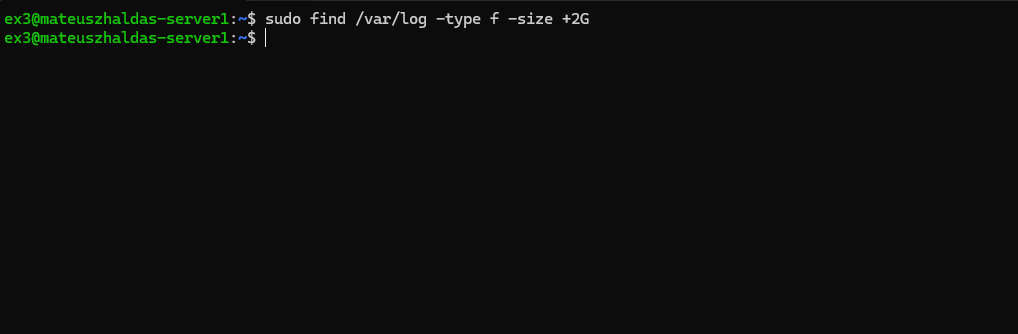
In this case we didn't find anything.
This searches for files larger than 2 GB.
Another useful option is searching by modification time:
find /var/log -type f -mtime -2
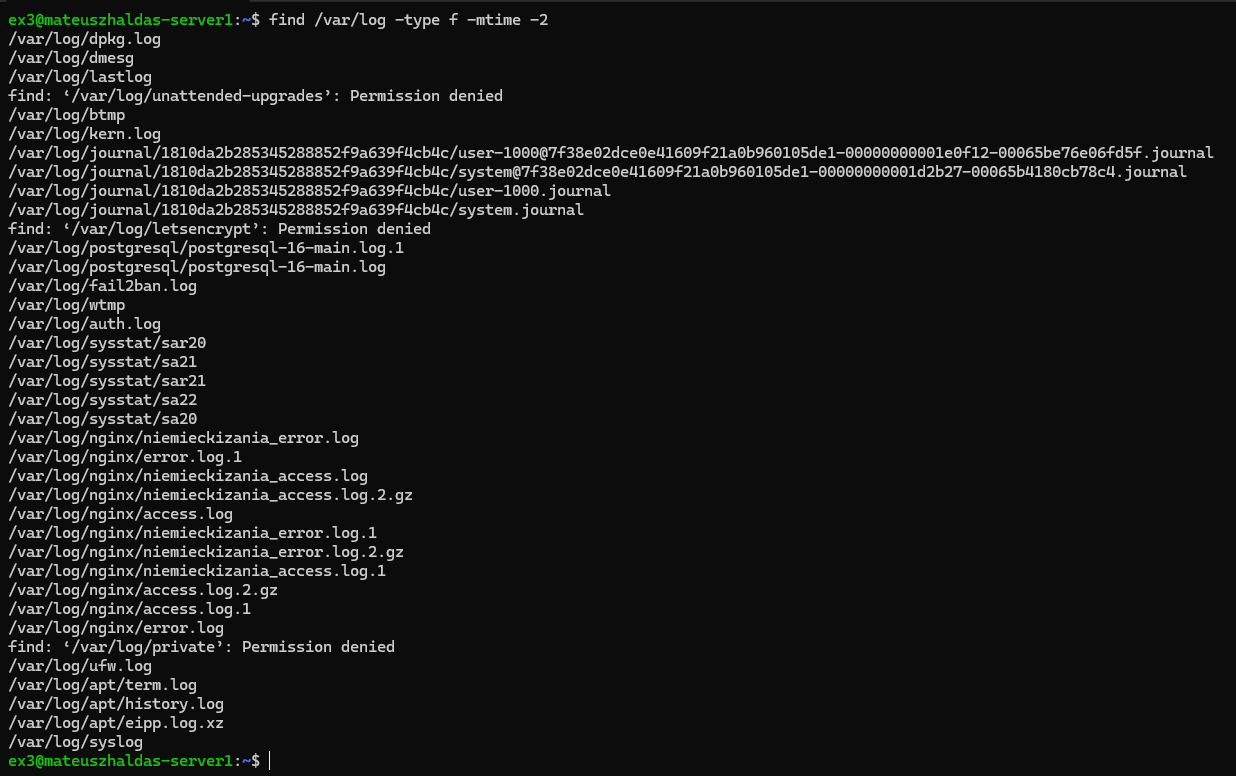
This looks for files modified within roughly the last two days.
If I need more precise time-based searching, I can use minutes:
find /var/log -type f -mmin -120
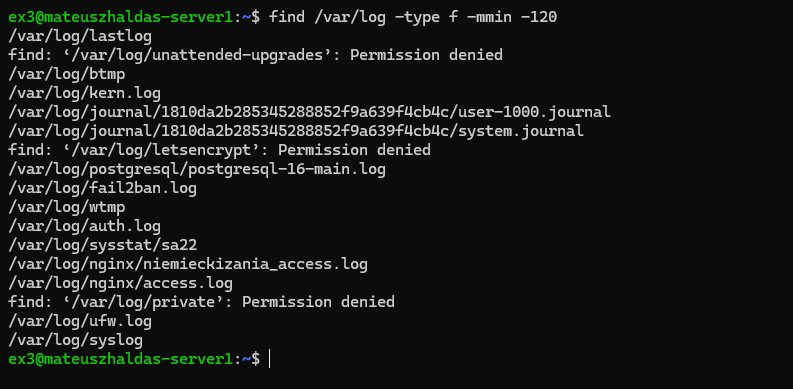
This searches for files modified within the last 120 minutes.
The real power of find comes from combining these conditions:
find /var/log -type f -mtime -2 -name '*.log'
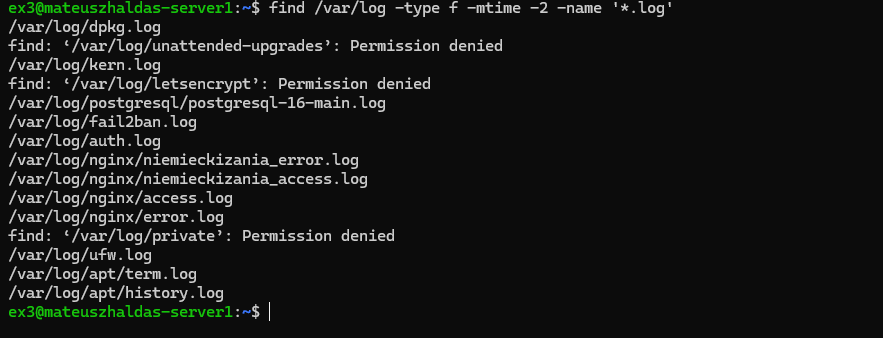
Now I am looking for regular files that:
- have a
.logextension, - were modified within the last two days,
- and are located somewhere under
/var/log.
This makes find a very useful tool not only for locating files, but also for troubleshooting Linux systems.
3. Understanding Disk Usage with du and df
Finding files is useful, but during troubleshooting I also need to understand how much disk space is being used.
Two commands are especially important here:
df
and
du
Although they are related to disk usage, they answer two different questions.
df — How much space is used?
I can start with:
df -h
The -h option makes the output easier to read.
df shows me how much space is available and how much is already being used on the filesystem.
For example, if I see that a filesystem is 96% full, I know that there is a problem that needs investigation.
However, df does not tell me which directory or file is responsible for using that space.
That's where du comes in.
du — What is using the space?
I can use:
du -hd1 /
This helps me see how much space is being used by directories directly under /.
For example, if /var is taking up a significant amount of space, I can investigate it further:
du -hd1 /var
If /var/lib turns out to be the largest directory, I can continue:
du -hd1 /var/lib
This allows me to narrow down the problem step by step instead of searching the entire filesystem blindly.
The basic difference is:
df → How much space is used?

du → What is using the space?
This combination is very useful during Linux troubleshooting. I can first use df to identify a filesystem with high usage, and then use du to find the directories responsible for it.
Once I know which area is taking up the space, I can use find to locate specific large files and investigate them further.
4. A Real Linux Troubleshooting Example
After learning how df, du, and find work, I wanted to put them together in a real troubleshooting scenario.
The situation was simple:
The filesystem was 96% full.
Instead of immediately deleting files, I wanted to find out what was actually using the disk space.
I started with:
df -h
This confirmed that the filesystem was almost full.
The next step was to find out which directories were responsible for the high disk usage:
du -hd1 /
After checking the results, I focused on /var:
du -hd1 /var
Then I went one level deeper:
du -hd1 /var/lib
This eventually pointed me towards:
/var/lib/libvirt
which was using around 4.8 GB of space.
At this point, I still did not delete anything.
I needed to understand what was using those 4.8 GB.
The large file turned out to be:
devops-lab.qcow2
a virtual machine disk.
I then checked the virtual machines managed by libvirt:
sudo virsh list --all
The output showed:
devops-lab shut off
The virtual machine was powered off.
After confirming that the VM was no longer needed, I removed it together with its storage:
sudo virsh undefine devops-lab --remove-all-storage
After the cleanup, filesystem usage dropped from:
96%
to:
86%
This was a good example of how the commands I learned can work together:
df
 ↓
du
 ↓
du
 ↓
identify the large directory
 ↓
identify the large file
 ↓
analyze what the file belongs to
 ↓
clean it up
 ↓
verify
The important part was not simply deleting a 4.8 GB file.
The important part was understanding what the file was before deleting it.
On a real server, blindly deleting large files can easily cause a much bigger problem than a full disk.
Conclusion
This session helped me understand that Linux troubleshooting is not about running random commands and hoping to find the problem.
It is about following a process.
First, I need to understand where I am in the filesystem. Then I can search for files, check disk usage, identify what is consuming the most space, and investigate the cause.
The most important workflow I took away from this session is:
FIND
  ↓
IDENTIFY
  ↓
ANALYZE
  ↓
DECIDE
  ↓
DELETE / CLEAN
  ↓
VERIFY
The practical example with the devops-lab virtual machine showed me why this approach matters. Finding a large file is only the beginning. Before removing anything, I need to understand what it is and whether it is actually safe to delete.
The commands from this session may look simple, but they are fundamental tools for working with Linux servers.
For me, the biggest takeaway is simple:
Don't just look for something to delete. Find the cause, understand it, and then make a decision.
This is another small step toward becoming more comfortable with Linux and, eventually, working with real DevOps infrastructure.